GigOps CAD draws festival site maps, venue floor plans and stage plots to real size, in the browser, with no install. It also takes a set of drone photos and stitches them into one backdrop, already scaled in feet and turned north up from the photos' own GPS. The plan starts on a picture of the site as it is today, not last year's PDF.
Comes with every product at no extra cost. The photos are matched in your browser and never leave it unless you choose to keep the result.
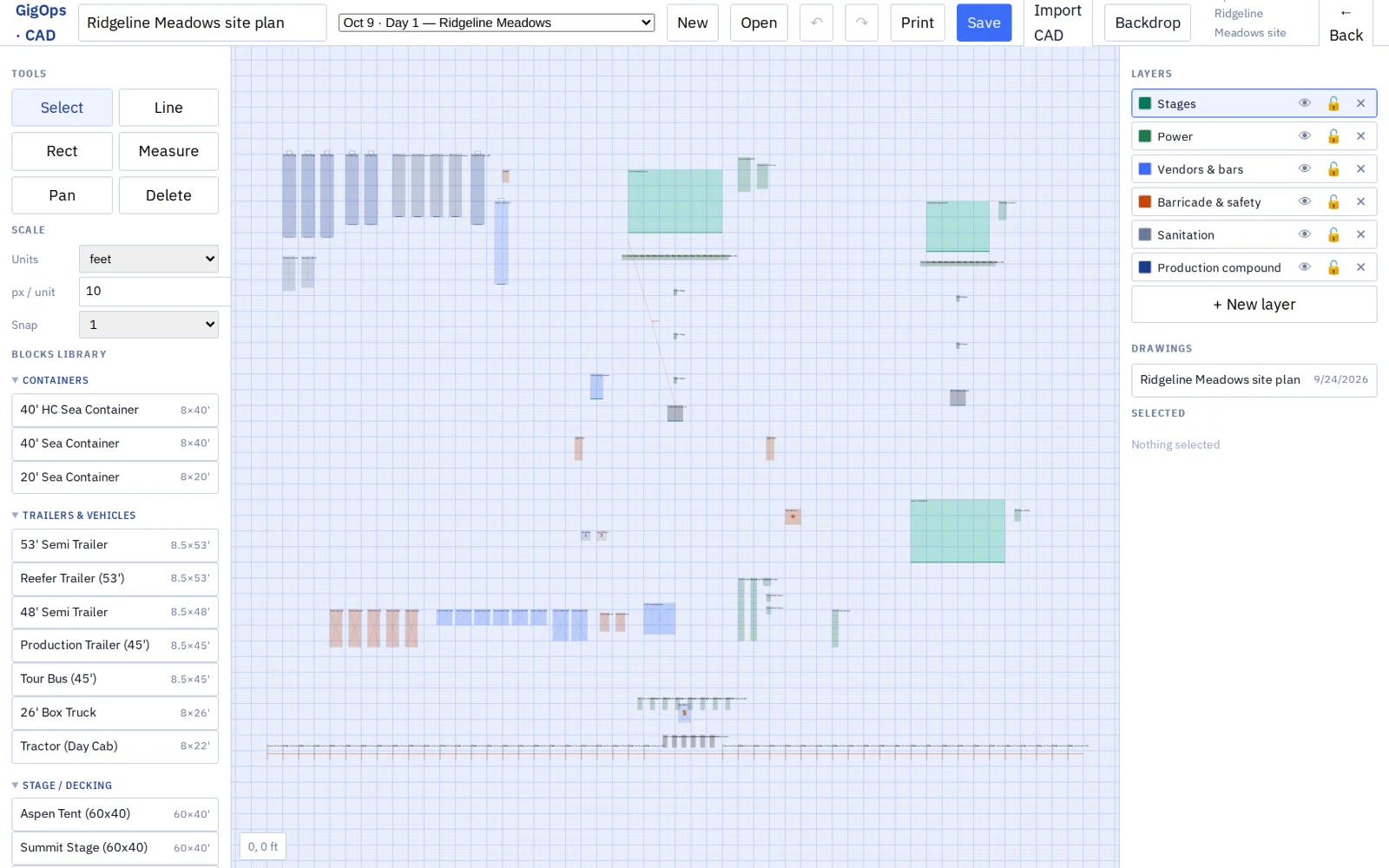
Stitch and scale
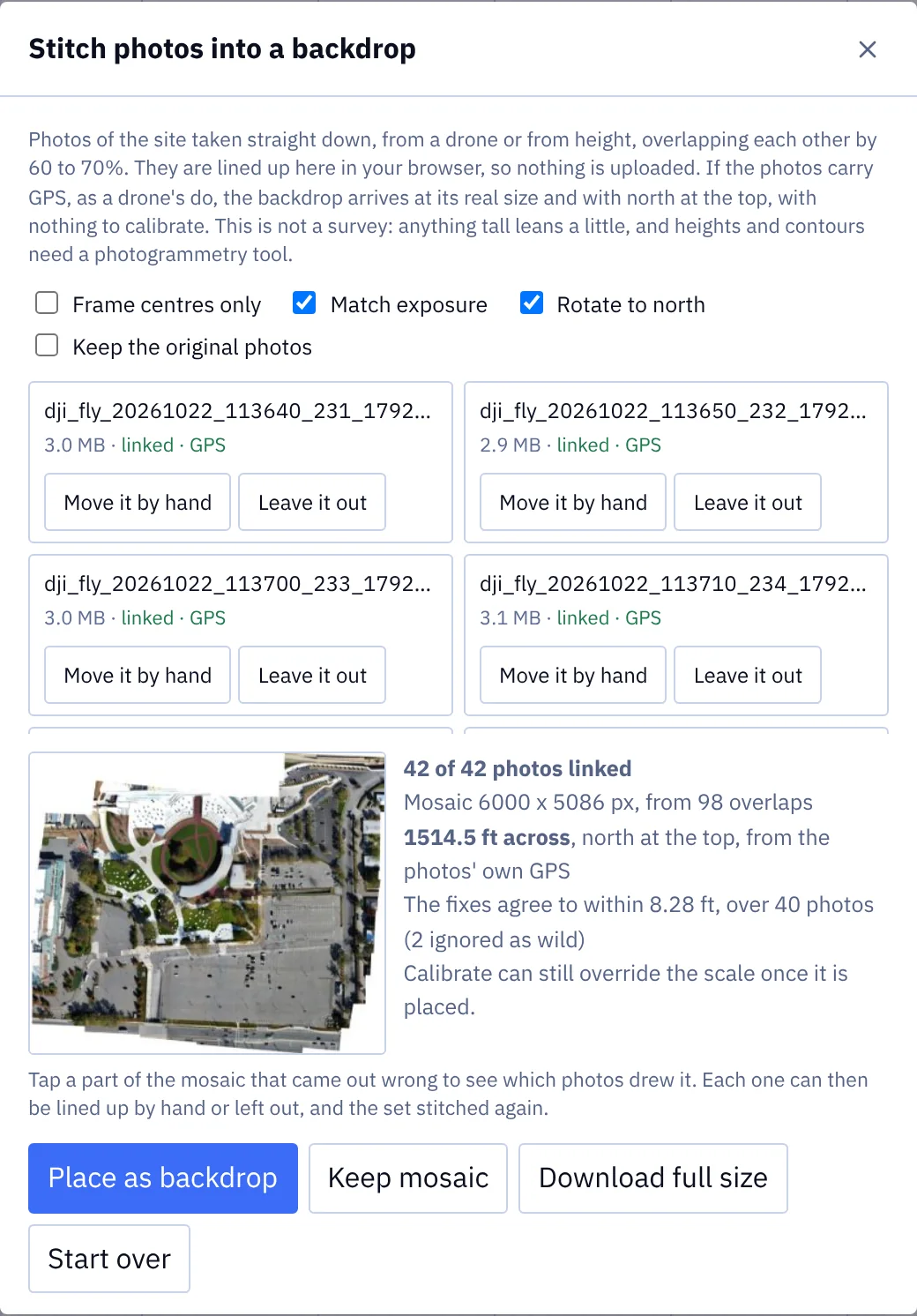
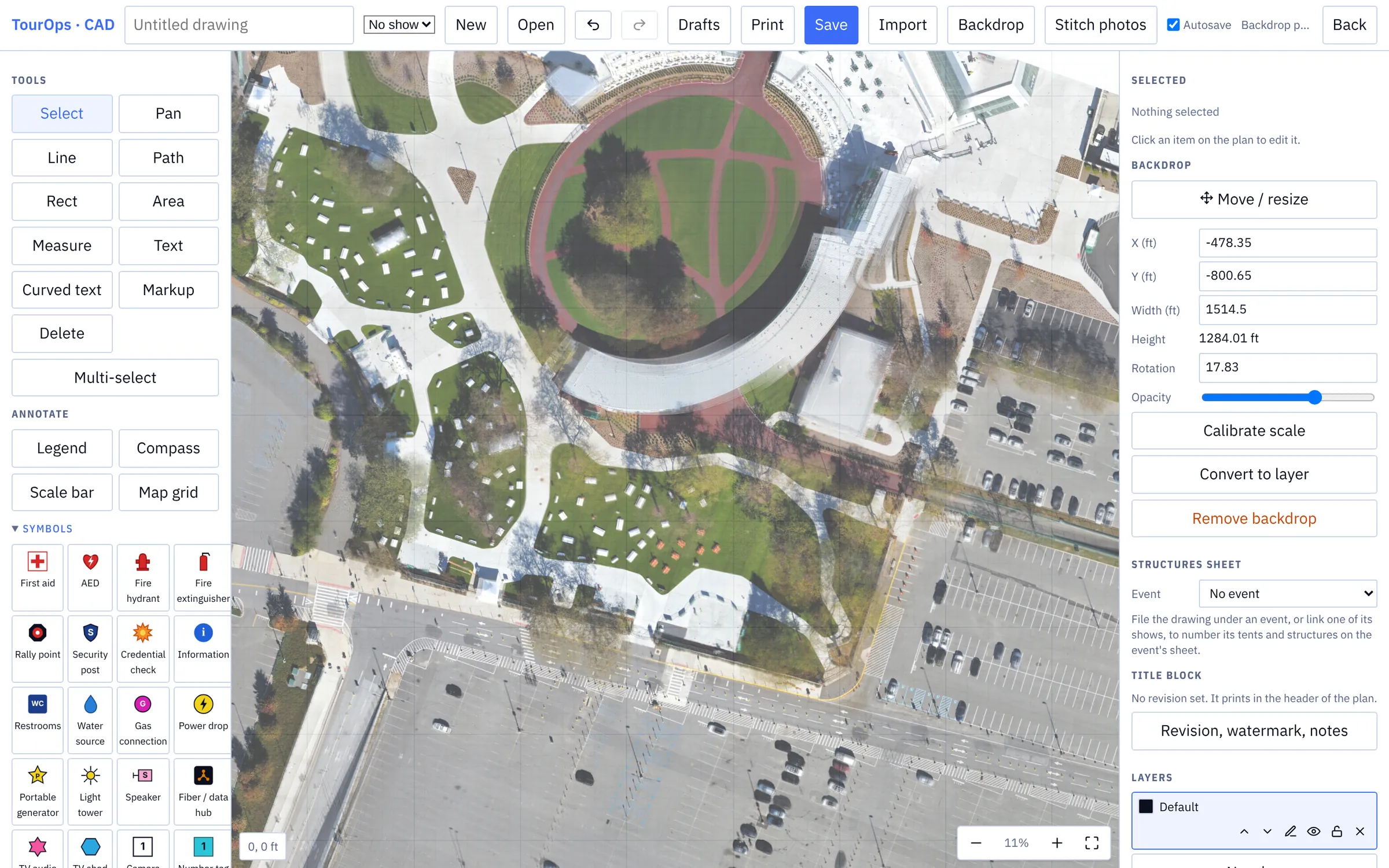
Walk or fly the site, take overlapping photos straight down, and drop the set on the drawing. They are lined up into one image, measured against the positions the camera recorded, and placed as the backdrop at their real size with north at the top. There is nothing to calibrate and nothing to send away. Everything below is one real run, on a real set of forty-two.
{{ s.body }}
What the run reports
It tells you how far the photos disagreed, so you can judge the number rather than take it on trust.
A fix that disagrees far more than the rest is thrown out rather than averaged in, and the card says how many: two of the forty-two here. Where the photos carry the camera's height as well, a second reading of the scale from the optics alone is checked against the GPS and the card says whether the two agree.
What it is not
It is not photogrammetry. There is no point cloud, no elevation model and no true orthophoto, so anything tall leans a little and a stitched backdrop is a scaled picture to draw on rather than a survey. Neighbouring photos need about 20% overlap to line up at all and 60 to 70% to line up accurately. Open water, fresh snow and plain sand have nothing to match on. When the photos carry no GPS, Calibrate against two known points is still there, as it always was.
The rest of the drawing
{{ r.body }}
Also in CAD
{{ c.body }}
Where you use it
CAD is part of the shared core, so it is in every GigOps product on the same login and the same data. What you draw it for is what changes.
Questions
CAD comes with every product. 7-day free trial. Company Users are $39 per user / month. View only seats are $0. Crew are always free.
Leave your name and email, and we'll reply the same week. Bring a set of photos of a site you know and we will stitch it with you.
GigOps CAD draws festival site maps, venue floor plans and stage plots to real size, in the browser, with no install. It also takes a set of drone photos and stitches them into one backdrop, already scaled in feet and turned north up from the photos' own GPS. The plan starts on a picture of the site as it is today, not last year's PDF.
Comes with every product at no extra cost. The photos are matched in your browser and never leave it unless you choose to keep the result.
Stitch and scale
Walk or fly the site, take overlapping photos straight down, and drop the set on the drawing. They are lined up into one image, measured against the positions the camera recorded, and placed as the backdrop at their real size with north at the top. There is nothing to calibrate and nothing to send away. Everything below is one real run, on a real set of forty-two.
Drop in up to 60 photos taken straight down and overlapping. They are matched on the detail they share, lined up, and blended so a seam neither bands nor doubles up the gravel either side of it. A photo the matcher gives up on is listed with the reason rather than placed somewhere wrong, and you can rescue it by tapping the same feature on both photos three or four times.
Each photo records where the camera was. One fit through all of them gives feet per pixel and the angle to north, so the backdrop arrives at its real size the right way up. Three photos with GPS is the floor; below that it says so and falls back to Calibrate.
Keep mosaic stores the result with your account. Place puts it back at the same size and heading on any drawing of that site, with no calibration and no re-flying, and Download gives you the full-size image. Keep the original photos too, and the set loads straight back into the dialog to be stitched again with different settings.
What the run reports
It tells you how far the photos disagreed, so you can judge the number rather than take it on trust.
A fix that disagrees far more than the rest is thrown out rather than averaged in, and the card says how many: two of the forty-two here. Where the photos carry the camera's height as well, a second reading of the scale from the optics alone is checked against the GPS and the card says whether the two agree.
What it is not
It is not photogrammetry. There is no point cloud, no elevation model and no true orthophoto, so anything tall leans a little and a stitched backdrop is a scaled picture to draw on rather than a survey. Neighbouring photos need about 20% overlap to line up at all and 60 to 70% to line up accurately. Open water, fresh snow and plain sand have nothing to match on. When the photos carry no GPS, Calibrate against two known points is still there, as it always was.
The rest of the drawing
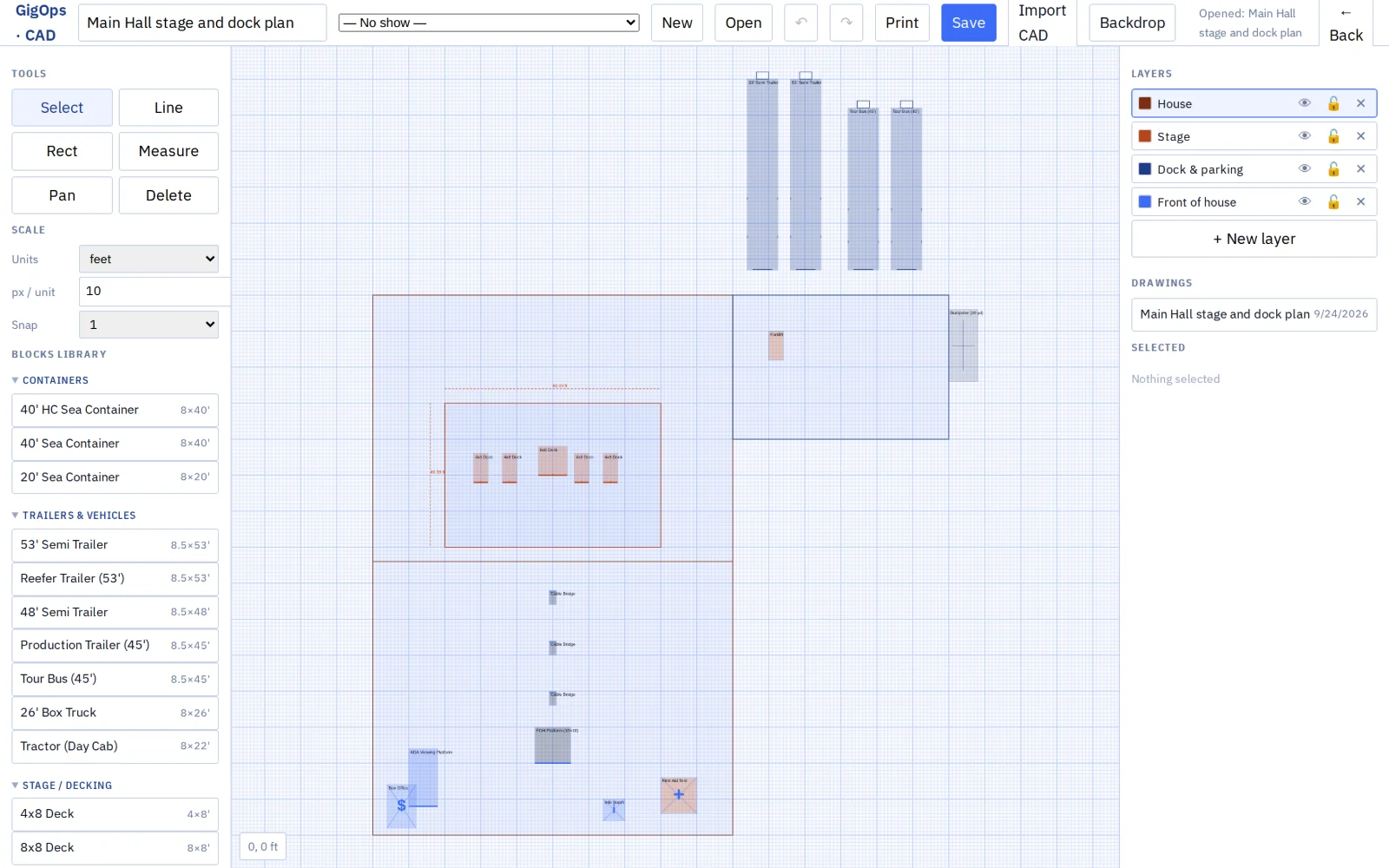
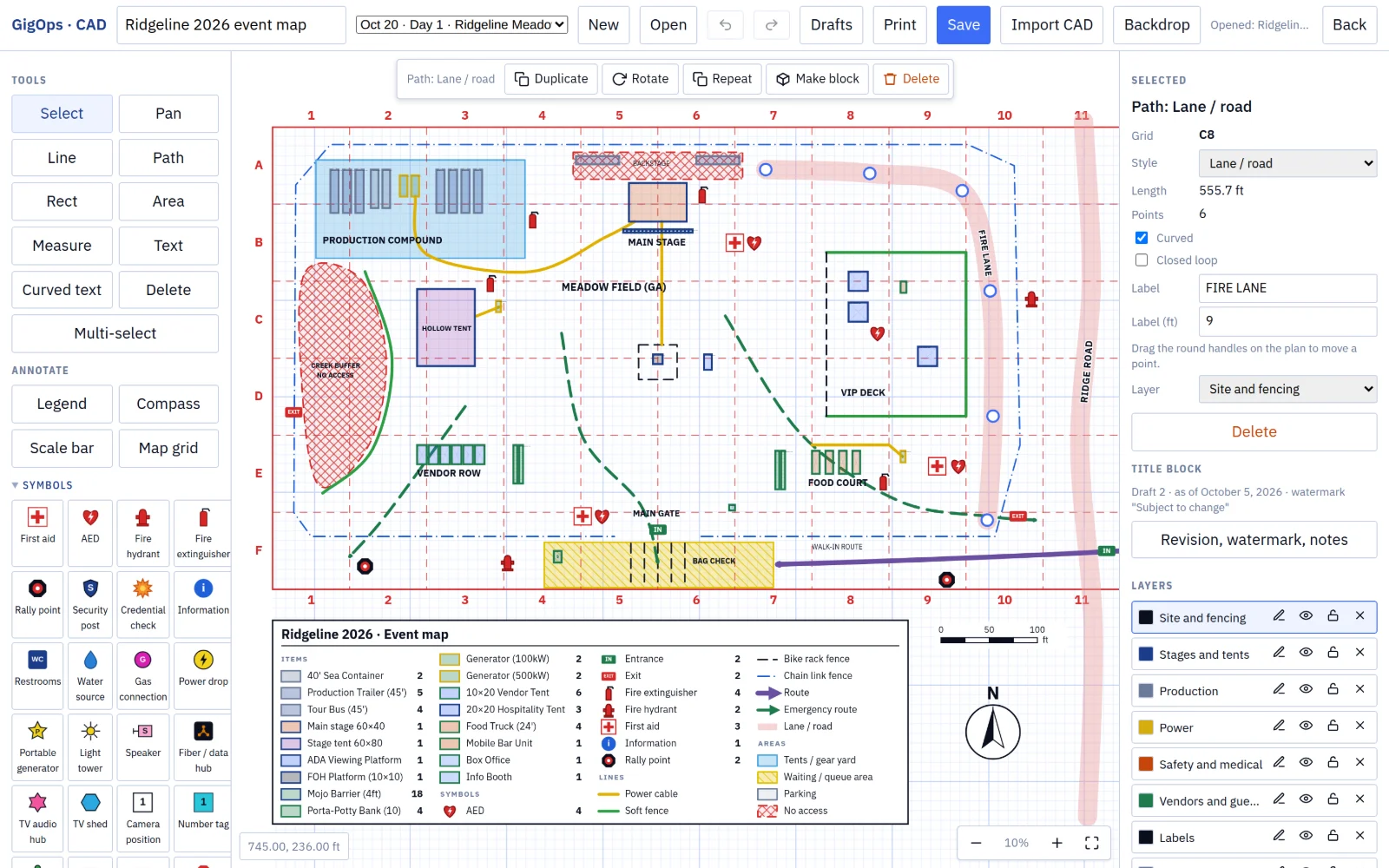
Fences, cable runs, routes and zones in styles that mean something, tents and trucks from a blocks library at the size of the real thing, safety symbols, a legend that counts itself, a compass, a scale bar and a lettered map grid so a spot can be called out as E7. Type an exact width and length, or a length and an angle, and drop it where it goes.
A venue draws its floor plan, its loading dock and its rigging once and attaches it to the venue profile. A tour that books the room opens it from the booking, drops its own stage plot on at the size it set under production needs, and saves a copy of its own that the venue never sees.
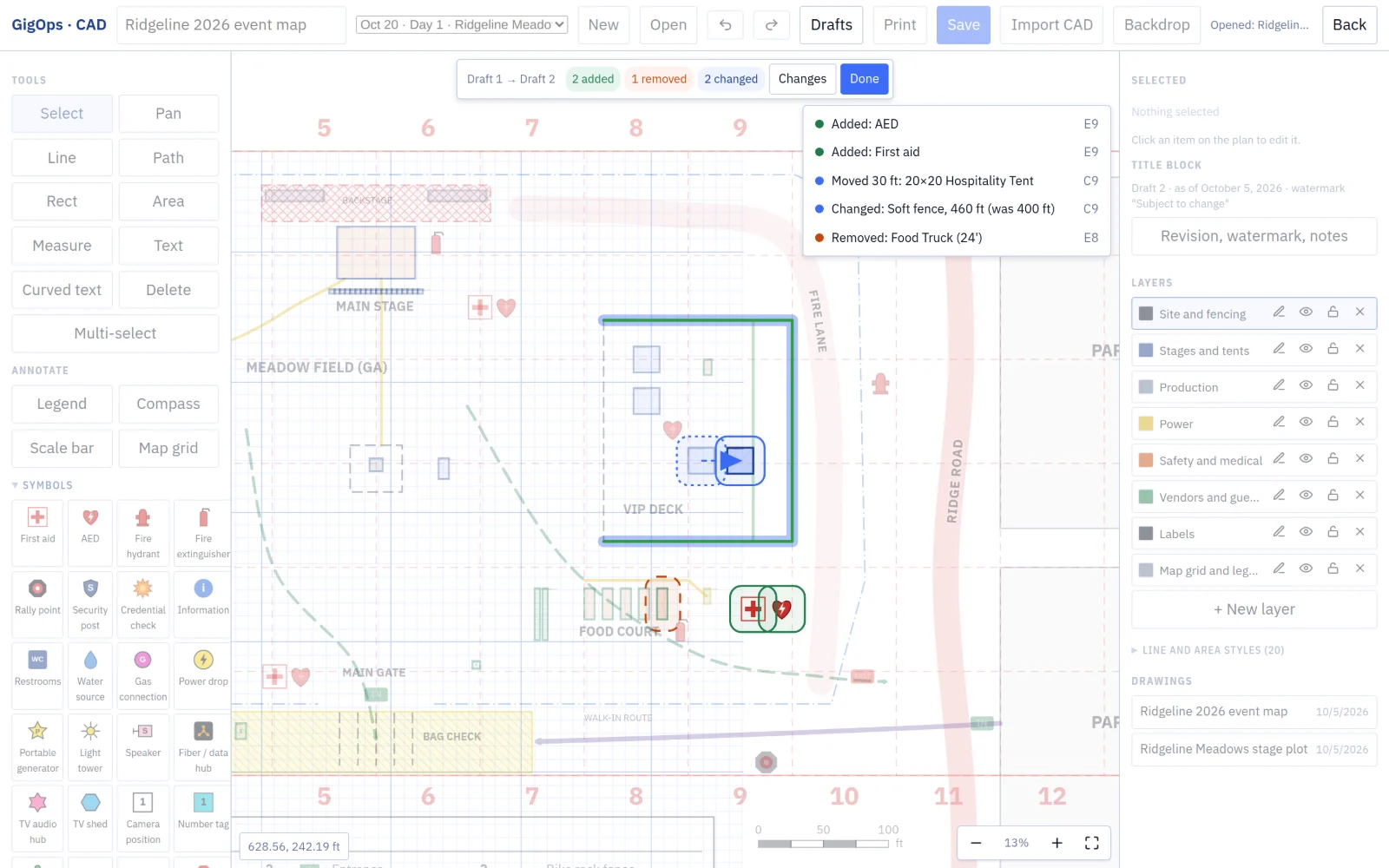
Save a numbered draft before you send it out, with a note on what changed. Compare any draft against the drawing now, or two drafts against each other: added in green, removed in orange, moved or changed in blue, each one listed so you can jump to it. Restore puts the drawing back the way a draft had it.
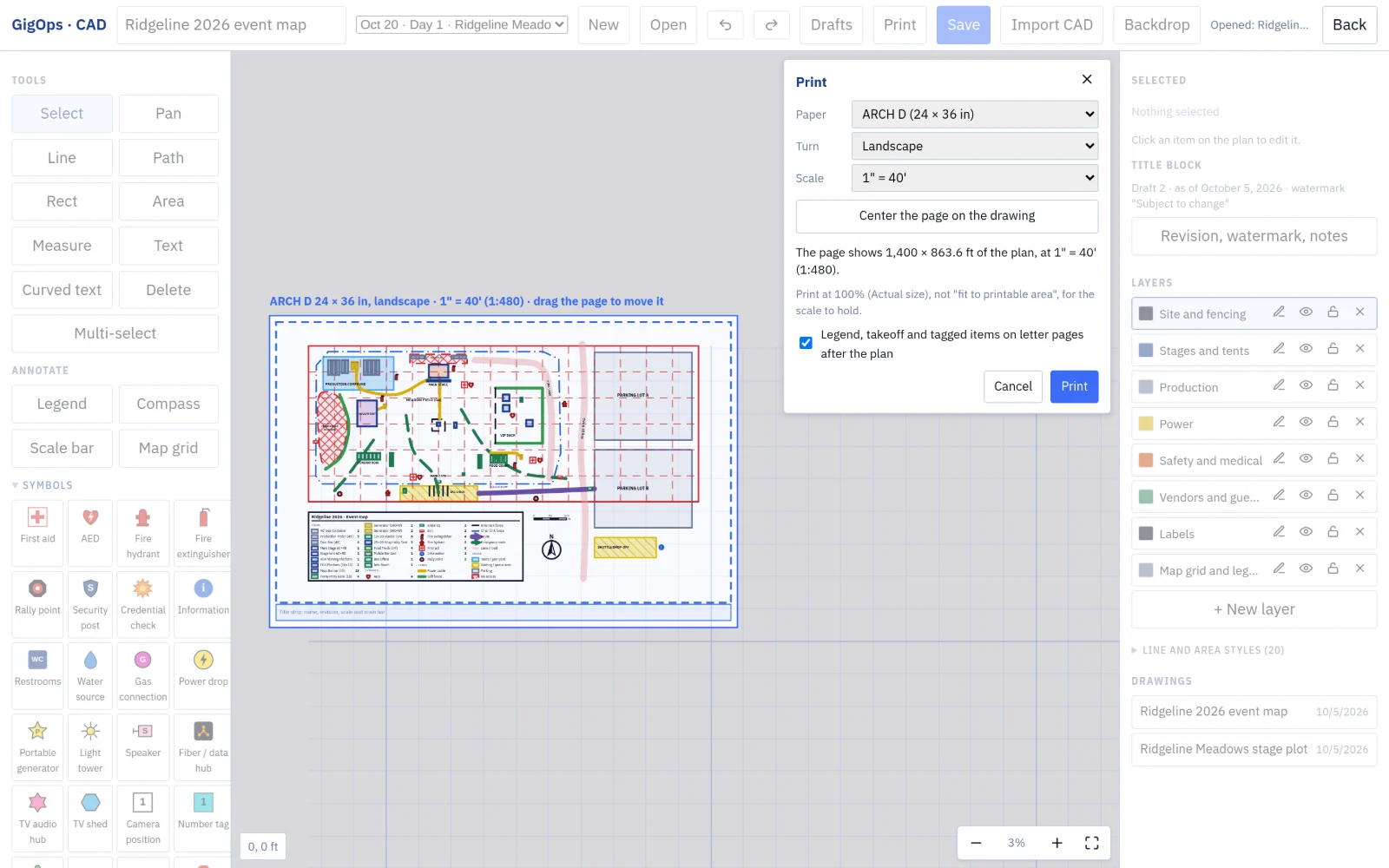
Pick the paper from Letter to ARCH E or A4 to A0, portrait or landscape, and a fixed scale such as 1 inch to 20 feet or 1:500. The sheet frame and title strip show on the plan so you can see what prints. Legend, takeoff and tagged items follow as their own pages, and Download PDF gives a full-resolution vector export.
Also in CAD
Import a DXF or a Visio .vsdx. Layers come across as layers, keeping their name, colour and whether they were off, and labels come across as text. A DWG or an old .vsd is saved as DXF or .vsdx first.
A site photo, a satellite grab or the venue’s own PDF goes under the drawing. Calibrate against two points a known distance apart and it matches real-world scale.
Power, rigging and fencing stay apart. Hide a layer, lock it, give it a colour, and it stays out of the legend and the print takeoff while it is hidden.
Save anything you draw as a block, or build one with a name, size, shape and colour. Your company’s blocks sit beside the shared library, and a placed block keeps the size of the real thing.
Tents placed from the library take the next number in their zone and appear on the event’s structures sheet, in step with the map. Go between the plan and the sheet from the top bar.
A tour sets its stage width and depth once. On the venue’s plan it drops in as a dashed outline at that size, with the downstage edge marked, over the room it has to fit in.
Draw freehand on the plan to say where the cable actually ran, or to circle the thing to argue about. With an Apple Pencil the harder you press the heavier the line. The width is in the plan’s units so it prints right, and it is the one tool that never snaps to the grid, because a hand-drawn line rounded to the nearest foot is not the line that was drawn.
The editor is a row in the GigOps Company app’s iPad sidebar, under Plans. It is the same editor as on the web, so a plan opened there has every tool, every draft and the same print setup.
Set the revision, the as-of date, a watermark and the changes in this revision, and they print on the sheet. Saving a draft writes its name and notes in for you.
A drawing attached to a venue profile follows the visibility you set, so a tour sees it on the booking’s documents when you allow it and opens it read-only. Nothing is public unless you make it so.
Where you use it
CAD is part of the shared core, so it is in every GigOps product on the same login and the same data. What you draw it for is what changes.
Site maps for the grounds: fences, gates, the vendor village, emergency routes and the tents, numbered onto the structures sheet. Stitch the field before build week and draw on what is actually there.
Explore FestivalOps →Floor plans, dock plans and rigging for every room and space, drawn once and attached to the venue profile for the tours that book you.
Explore VenueOps →Stage plots at the size you carry, checked against the room before load-in, and a copy of the venue’s plan marked up for your own crew.
Explore TourOps →Courses and venues for a comp: the run, the landing, the judges’ tower, the fan zones and the broadcast positions, on a backdrop flown the week before.
Explore ActionOps →The plan the venue and the tour are working from, on the show you promote, so the build you are paying for is the build you expected.
Explore PromoterOps →Questions
CAD comes with every product. 7-day free trial. Company Users are $39 per user / month. View only seats are $0. Crew are always free.
Leave your name and email, and we'll reply the same week. Bring a set of photos of a site you know and we will stitch it with you.